How to set up Slack notifications
1. Navigate to the Connections Hub tab found on the left sidebar of the interface.
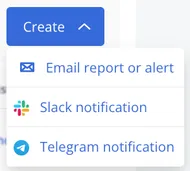
2. Click on the ‘Create’ option in the top right corner to select Slack Notification.
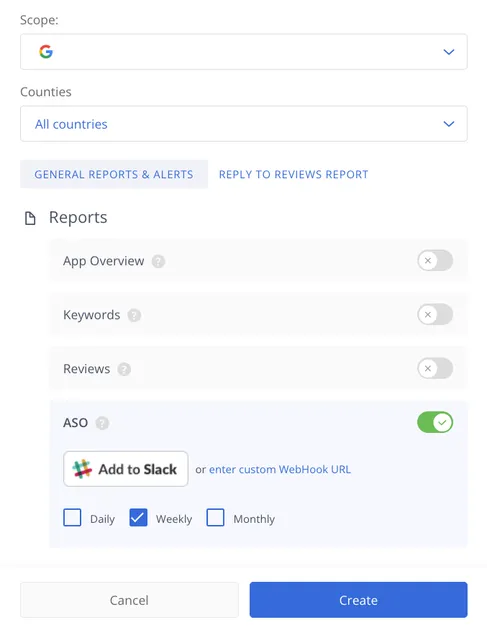
3. Choose the apps and countries for which you want to get the report.
4. In the General Reports & Alerts tab, select the report or alert you need, then click on Add to Slack to complete authorization and select a Slack channel you want the report to be sent.
You can also enter the custom WebHook URL of the Slack channel.
Find out how to set up and run WebHooks in this Slack guide.
5. Choose the time period for the report: daily, weekly or monthly.
6. Save the settings by clicking on Create.
Was this helpful?