
|
In this article: |
Overview
Use Telegram to quickly reply to reviews and deal with feedback without needing to use the desktop version of Asodesk. Make your review response process faster with this handy feature.
How it works
Once you have enabled the Reply to Reviews report in Connections Hub, reviews will automatically be sent to Telegram. A message appears in the selected group or channel, and you can reply to the review directly from there.
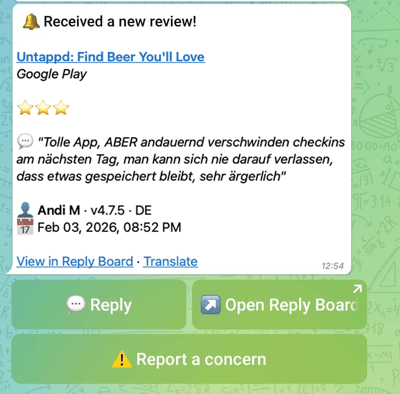
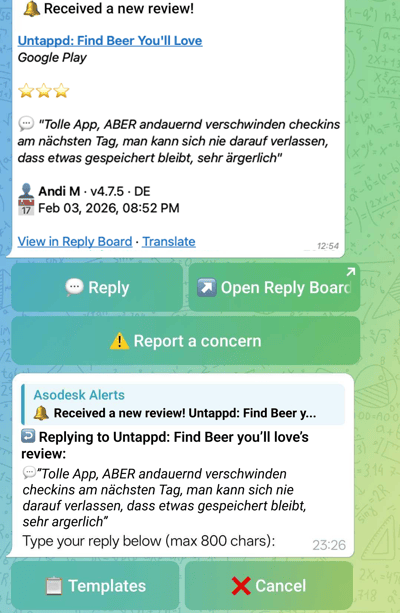
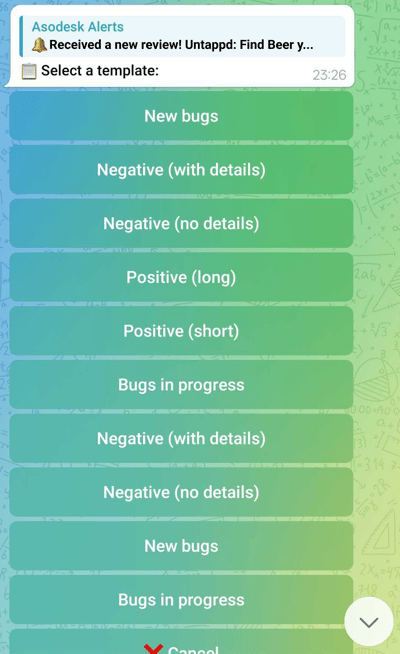
You can also choose a pre-made reply template from Asodesk by clicking on Reply→Templates:
How to set up the report
First, you need to go to Telegram to connect the bot and get an ID for setting up notifications in Asodesk. The bot can be connected to a Telegram channel or a group chat.
Groups:
Groups are interactive chats where participants can send messages.
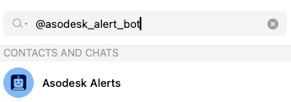
1. Click here to add the bot to your group, or search for @asodesk_alert_bot manually.
2. Add the bot as an administrator to the group;
3. Send /get_chat_id in the group.
For threads: send /get_thread_id in a specific thread.
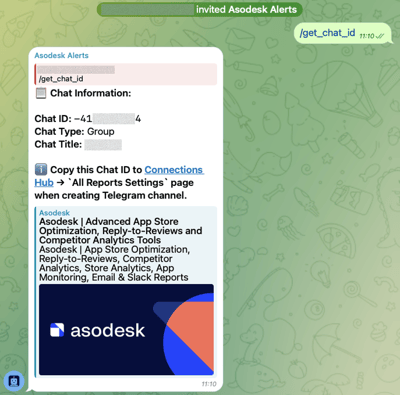
Channels:
Channels are broadcast-only chats where only administrators can post messages (the bot automatically sends the chat ID when added).
1. Click here to add the bot to your channel (channels where you are an administrator will be displayed, then select a channel).
2. The bot automatically sends the chat ID when added as an administrator.
/get_chat_id only works in groups where you can send messages.
Chat ID is usually a negative number.
After adding the bot to a channel or group:
1. Navigate to the Connections Hub tab found on the left sidebar of the interface.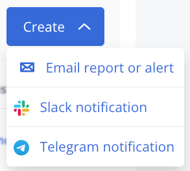
2. Click on the 'Create' option in the top right corner to select Telegram Notification.
3. Enter the channel name in the Channel Name field; in the Chat ID field, paste the ID (negative number) received from Telegram;
Optional: Paste the Thread ID if you want to receive notifications in the comments for a specific post.
4. Click on 'Reply to reviews report', then enable the option 'Respond to every new and updated review by Telegram'.
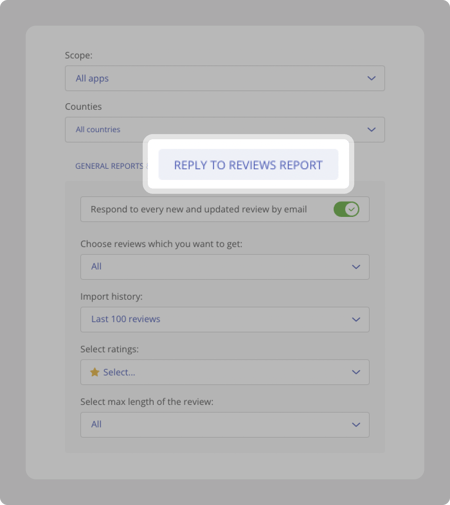
6. Select the review criteria you want to receive alerts for:
- The type of reviews you want to receive: all reviews, updated reviews, reviews that have got worse, or reviews that have got better.
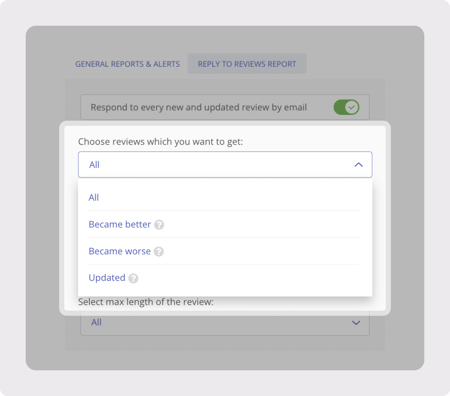
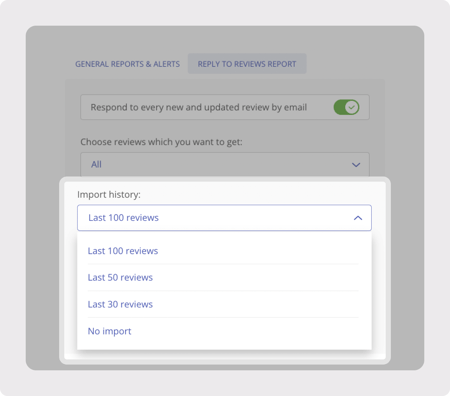
- Import history: specify the number of reviews you would like to receive before running the report.
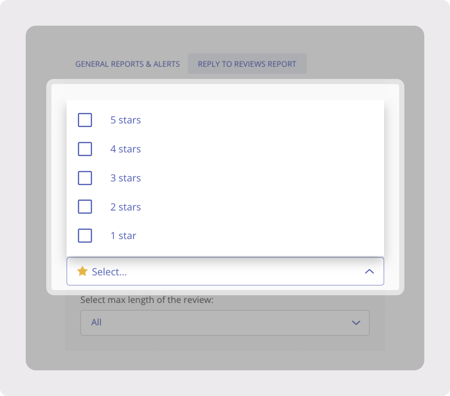
- The rating of reviews that you like to receive.
-
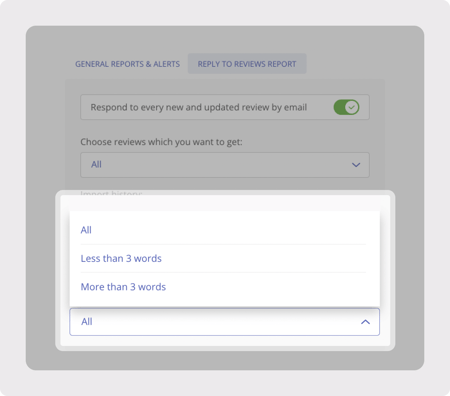
The length of reviews you want to receive: more or less than 3 words.
To reply to user reviews, you need to connect Asodesk to your app store console.