1. Navigate to the Connections Hub tab found on the left sidebar of the interface.
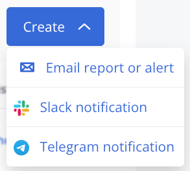
2. Click on the 'Create' option in the top right corner to select Email report or alert.
2. Click on the 'Create' option in the top right corner to select Email report or alert.
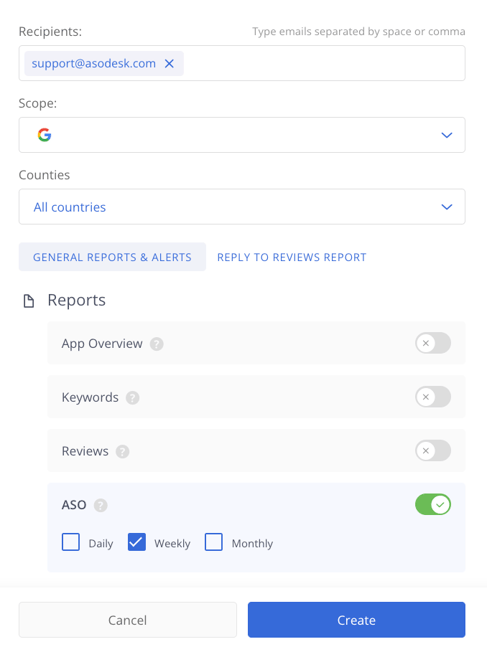
3. Specify the email address to which you would like the report to be sent.
4. Choose the apps and countries for which you want to get the report.
5. In the General Reports & Alerts tab, select the report or alert you need, then choose the time period for the report: daily, weekly or monthly.
6. Save the settings by clicking on Create.